Banner
Zoom
Main Content
Heading
These instructions are intended to assist your Zoom meeting preparation.
Zoom is a premier video conferencing solution is open to all users within the Duke Law community. All classrooms are capable of providing the Zoom experience for remote participants and guest lecturers.
DUKE LAW ZOOM
- Double click the Zoom icon on desktop to launch. Click “sign in.”
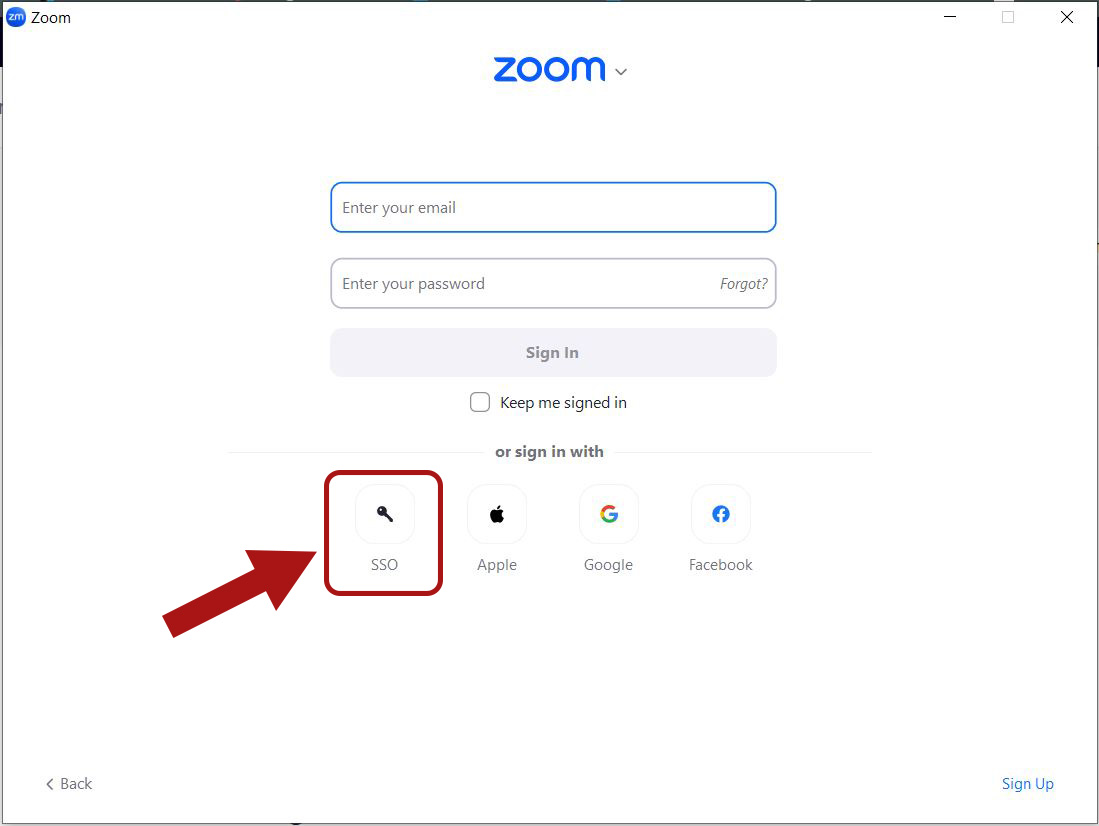
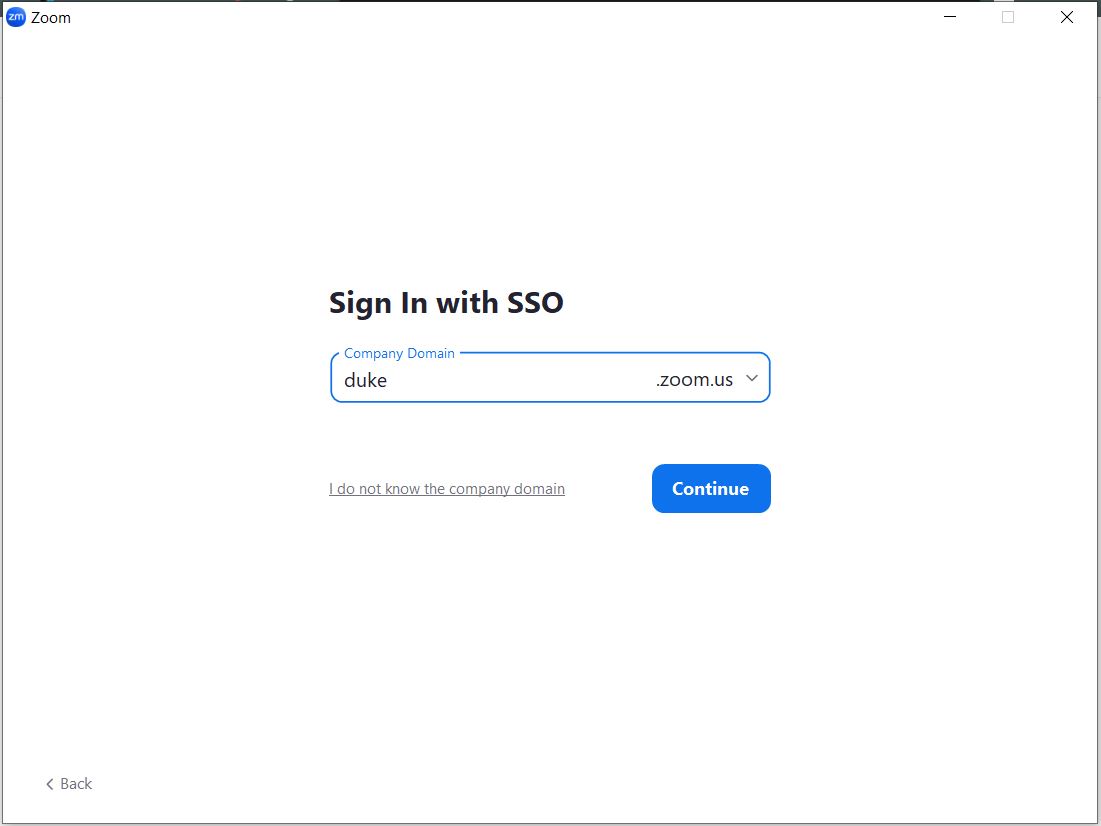
- Click “Sign in with SSO” and make sure that “duke” is in the field for Company Domain.
- Browser will pop up and prompt to sign in with Net ID and password.
- Zoom client/app will then be signed into the Duke Zoom account.
Left Side Content
1. Click here to Sign in with SSO (this will connect to your Duke NetID).
Button
Link
Right Side Content
2. Type "duke" into Your Company Domain.
Button
Link
Left Side Content
3. Sign in with your NetID and Password.

Button
Link
Right Side Content
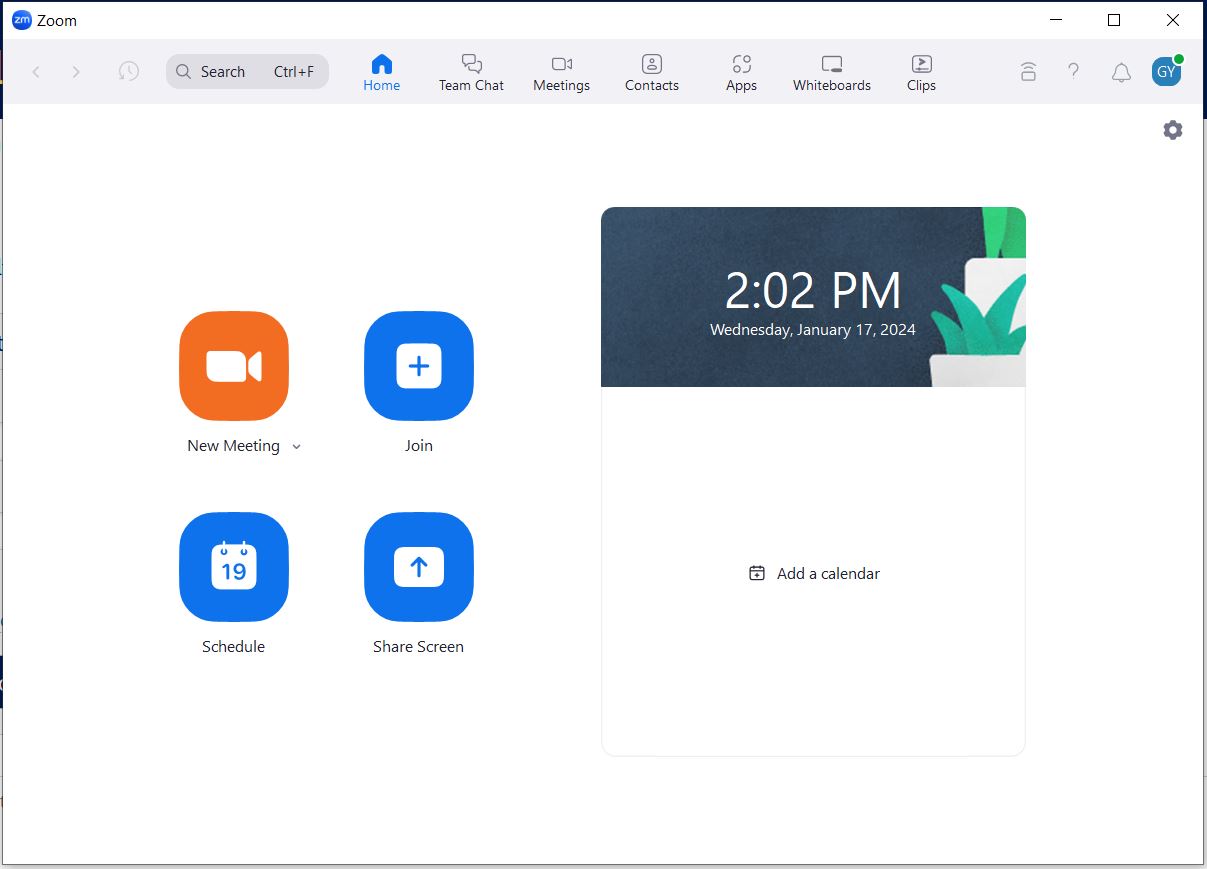
4. The Zoom Client for Meetings Interface will look like this.
Button
Link
SAKAI LOGIN / START CLASS
- Go to sakai.duke.edu and log in with Net ID if prompted.
- Go to the Zoom tools on left hand side and click meetings. Click Start.
- Zoom may ask to open a link / use client. Click box.
ZOOM meetings: Getting started
https://oit.duke.edu/help/articles/kb0029318/
How to I use ZOOM meetings with Sakai?
https://sakai-duke.screenstepslive.com/s/sakai_support/m/71692/l/1050034-using-zoom-meetings
Content
